How to Batch Edit in Lightroom: The Ultimate Guide (2026)
How do you batch edit in Lightroom to save time? You likely searched for this because fixing hundreds of photos one by one is totally boring and takes forever. Nobody wants to sit at a computer all day changing the same brightness and color settings on every single picture.
If you haven’t installed the app yet, check the Lightroom MOD APK download guide before trying the batch editing features.
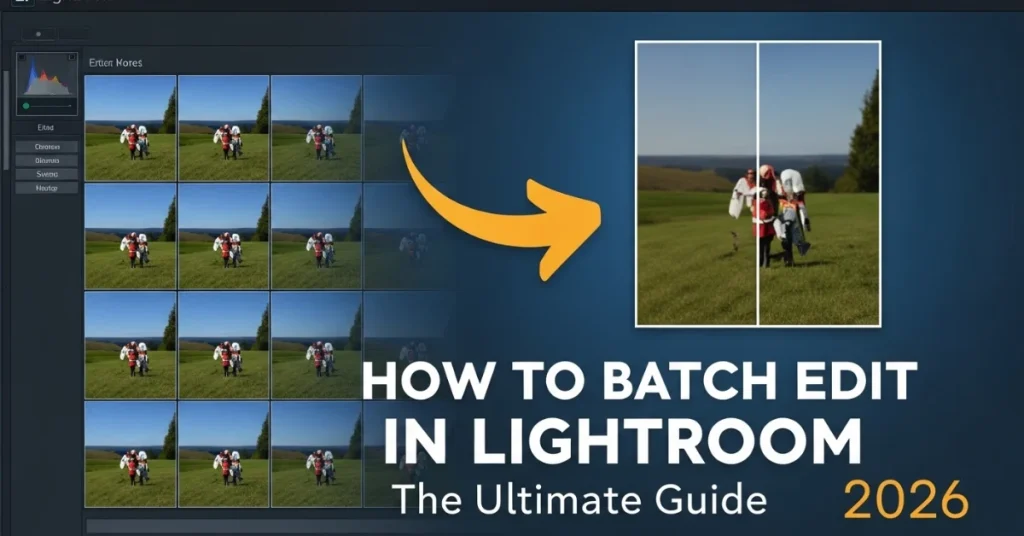
The good news is that Lightroom has a trick called Batch Editing. This feature lets you fix just one photo perfectly, and then paste those exact changes to all your other photos instantly. In this guide, we will show you exactly how to do this on Lightroom Classic and Mobile so you can finish your work in just a few minutes.
What is Batch Editing in Lightroom?
What exactly is batch editing in Lightroom? It is basically a shortcut that lets you fix a whole bunch of photos at the same time. You can look at it like a simple “copy-paste” button for your creative edits. Instead of opening every single image one by one, you just finish one picture and send those changes to the rest of the group instantly. This stops you from doing the same repetitive task over and over.
Let’s say you have fifty photos from a beach trip where the lighting is the same in all of them. Fixing the brightness on every separate image would take forever and get boring fast. With this tool, you adjust the first photo until it looks great, and then you apply that look to the other forty-nine images with one click. You save hours of work, and your whole album ends up looking perfect.
Advanced Batch Editing in Lightroom Classic
Ready to speed up your workflow even more? If you have hundreds of photos to fix, copying and pasting one by one takes too long, so professionals use the Sync tools instead. This section covers the faster methods that allow you to edit entire weddings or events in just a few clicks.The fastest way to batch edit is to apply Lightroom presets to multiple photos with just a few taps.
Method 1: The “Copy and Paste” Technique
Why is this the best way for beginners to start? You basically edit one photo until it looks perfect, and then you use a simple shortcut to copy those exact settings. Next, you just select your new unedited photo and paste the changes to fix it instantly. This method is great for small groups of pictures because you can control exactly which edits happen to each one.
Method 2: Synchronize Settings (The “Sync” Button)
How does the Sync button change the game? You simply select your edited “master” photo first, and then highlight all the other unedited images in your filmstrip. When you click the Sync button, a box pops up to let you choose exactly which tweaks, like exposure or white balance, you want to apply to the whole group at once.
Method 3: Using “Auto Sync” for Real-Time Editing
What makes Auto Sync different from normal Syncing? This feature acts like a live switch that applies every single slider movement to all your selected photos immediately as you do it. It is incredibly fast for fixing a group of dark photos together, but be careful because one mistake will show up on every single picture instantly.
If you’re working on mobile, you can still batch edit photos in Lightroom on iPhone using the copy and paste settings feature.
How to Batch Edit in Lightroom CC (Desktop)
How is editing in the cloud version different for users? The CC version is built for speed and simplicity across all your devices. You don’t have as many complex menus as the Classic version, which makes batching much faster for casual users. It is perfect for people who want to sync their look between their computer and phone without any extra steps.
Method 4: Copying and Pasting Edits in the Cloud App
What is the quickest way to move edits between photos? You just finished your first photo and hit the shortcut to copy everything you just did. Then you select a bunch of other photos in the grid view and hit the paste button. This instantly changes the look of every selected image to match your first one perfectly.
How to Batch Edit in Lightroom Mobile
Can you really edit hundreds of photos on your phone? Many people think the mobile app is only for one photo at a time, but it has powerful batch tools too. You can take a look you created on your couch and apply it to an entire gallery while you are on the go. It uses the same logic as the desktop version to save you from hours of tapping.Batch editing is even more powerful when you use Lightroom on PC, as the desktop version offers advanced sync and preset options.
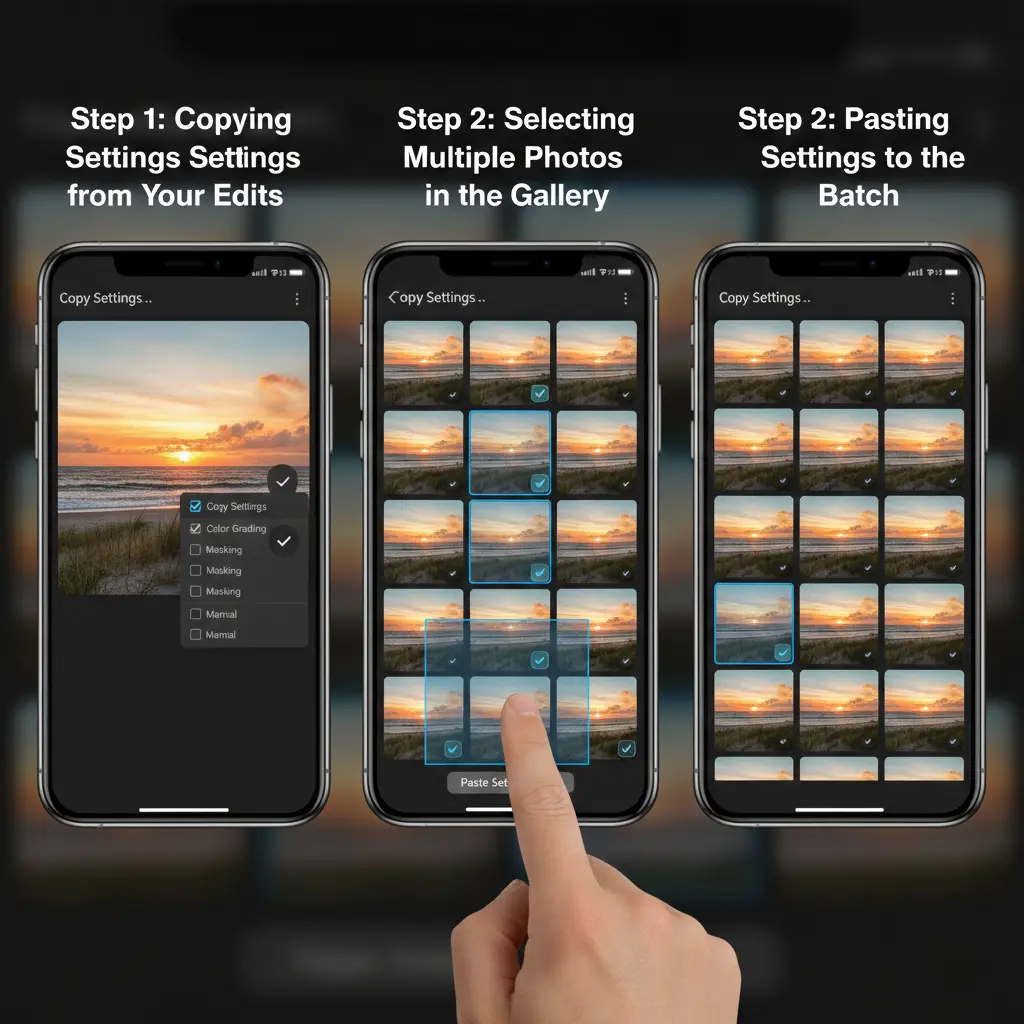
Step 1: Copying Settings from Your Edits
Where do you find the copy button on a small screen? Open your edited photo and look for the three dots in the top corner to find the copy settings option. A list will appear so you can pick if you want to copy things like the crop or the colors. Once you tap the checkmark, those settings are saved and ready to be used elsewhere.
Step 2: Selecting Multiple Photos in the Gallery
How do you pick more than one picture at once? Go back to your main library view and long-press on any photo to start the multi-select mode. You can then tap every photo you want to change or drag your finger to grab a whole row. This highlights all the images that need the new look applied to them.
Step 3: Pasting Settings to the Batch
How do you finish the job and apply the changes? After selecting your photos, look for the “Paste” or “Apply” button at the bottom of your screen. With one single tap, Lightroom will process every image you picked and apply your edits. You will see the thumbnails update instantly, showing that your batch edit is complete.
Batch Editing Quick Comparison Table
Which method should you choose for your workflow? This table helps you decide which tool to use based on how many photos you need to fix and how much time you have. It compares the most popular ways to edit groups of photos so you can pick the one that fits your current project.
| Method | Best For | Speed Level | Skill Level |
| Copy & Paste | 2-5 similar photos | Fast | Beginner |
| Sync Button | Entire photoshoots | Very Fast | Intermediate |
| Auto Sync | Real-time adjustments | Instant | Professional |
| Mobile Batch | Editing on the go | Fast | Beginner |
Best Practices for Consistent Batch Editing
How do you make sure every photo actually looks good? Batch editing works best when you group photos that were taken in the exact same lighting. If some photos are in the sun and others are in the shade, a single batch edit might make half of them look weird. Always do a quick scroll through your photos after batching to make small tweaks to the exposure.
Frequently Asked Questions
Conclusion
Batch editing is the best way to stop wasting your life behind a computer screen. By using these simple tricks in Lightroom, you can turn a boring task into a job that takes just a few seconds. Whether you use a phone or a desktop, these tools help you keep your work consistent and professional with almost zero effort.
Now that you know how to sync your photos and copy settings, it is time to get out and shoot more. Start with the basic copy-paste method and move up to the faster sync tools as you get more comfortable. You will be amazed at how much free time you have once you master these quick shortcuts.
If you’re unsure whether batch processing is better in Lightroom or Adobe’s other software, this comparison of Lightroom vs Photoshop for editing workflows can help.